Databus Logo
Blog Login →
The Stream-Quality Mechanism

The signal dips, the screen freezes, and the meeting stops while everyone waits to reconnect. Or — the picture softens, the voice keeps going, and nobody misses a word.

This is what the stream does when the network changes — adaptive bitrate scales video resolution to the connection while audio is preserved. A weak moment is a softer picture, not a frozen screen. Quality rises again when the signal recovers.

For any participant on any connection · adaptive bitrate · audio-first · HD-capable, network-appropriate · graceful degradation, in the browser.
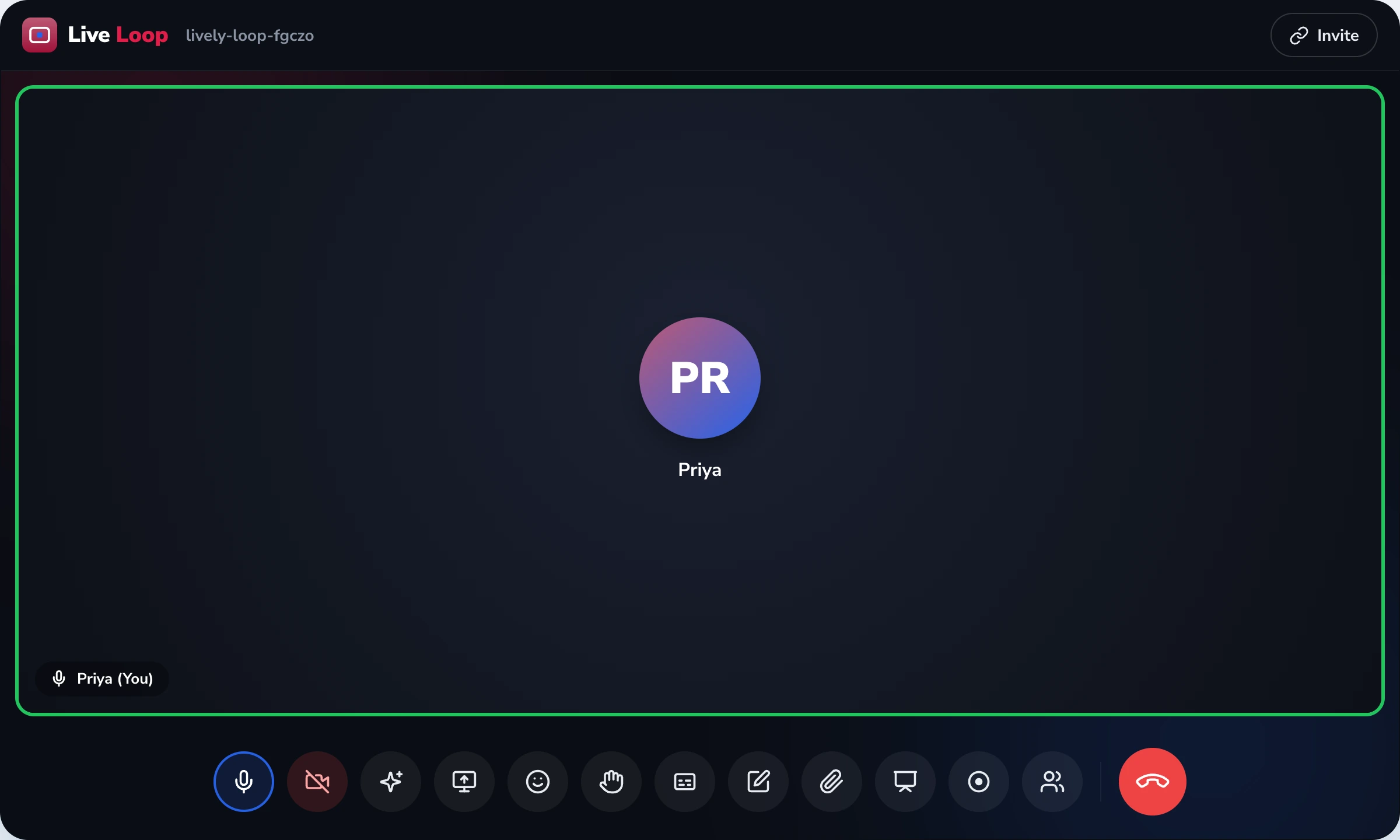
See how the stream adapts →
In plain English

HD Video & Audio owns the stream-quality mechanism — what happens to the picture and the voice as the network changes mid-meeting. It runs on adaptive bitrate: the connection is monitored, and when bandwidth drops the video resolution is lowered while the audio is preserved — so a weak moment is a softer picture, not a frozen screen or a dropped call. Video is HD-capable and network-appropriate: it rises when the connection is strong, scales down when it isn't, and recovers as soon as the signal returns. The priority is always audio, because losing a few seconds of sharp video is recoverable but losing the voice is not. It's audience-neutral — same behaviour for a class, a lecture or a team call. It does not own which devices and browsers are supported or the Wi-Fi-to-mobile-data handoff — that's cross-platform; nor the join — that's instant-join; nor host controls — that's moderation. This page is the quality of the stream once you're in.

Adaptive bitrate
scales video to
the connection
Audio-first
the voice is held,
video gives first
HD, network-fit
no fixed ceiling —
rises and recovers
Keeps going
a softer picture,
not a frozen screen
A connection through a meeting · what the stream does

As the bandwidth moves, so does the stream — and the line where this feature hands off.

A real connection isn't steady — it dips and recovers through a meeting. Here's what the adaptive stream does at each state, the way this feature handles it — and the last row marks what belongs to other features, not here.

Connection state → video → audio → call HD Video & Audio owns this
BandwidthVideoAudioCall status
strongHD, network-appropriatefullsmooth
dippingresolution steps downpreservedkeeps going
weaksoftened picturepreserved — voice firstno freeze
recoveringresolution rises againfullback to smooth
elsewherewhich device · the handoffthe join · the roomcross-platform · join · room
The last row is the boundary: this feature owns the four states above — what the stream does as the connection moves. Which devices and browsers it runs on, and how the session survives a switch from Wi-Fi to mobile data, is cross-platform; getting into the meeting is instant-join; the host's control of the room is moderation. This page is the quality of the stream, not the device, the entry or the room. (States shown illustrate adaptive-bitrate behaviour; exact steps depend on the connection.)
Where a meeting falls apart on a weak signal

Four ways a fixed-quality stream breaks down.

The frozen screen

A tool that insists on a fixed quality the connection can't carry simply freezes when bandwidth drops — and the meeting stalls while everyone stares at a still frame, waiting.

The voice that breaks up

When a stream sacrifices audio to keep the picture, the one thing that matters — being able to hear — is the thing that fails, and the discussion becomes impossible to follow.

The dropped call

A connection dip becomes a full disconnect, so instead of riding through a weak moment the participant is thrown out and has to rejoin, missing whatever happened meanwhile.

The manual quality fiddle

Tools that make the user pick a quality setting put the burden on the least-technical participant — who picks wrong, and either freezes on too-high or blurs on too-low for the whole call.

How the stream adapts

Start network-fit, monitor, lower video first, keep going, recover.

1

Start at the quality the connection allows

When a participant joins, the stream is HD-capable and network-appropriate — it uses the resolution the connection can actually carry, rather than forcing a fixed quality the bandwidth may not support.

2

Monitor the connection continuously

Throughout the meeting the available bandwidth is monitored. Connections aren't static — they dip when someone moves, the network gets busy, or the weather turns — so the stream watches for those changes as they happen.

3

When bandwidth drops, lower the video first

When the connection weakens, the video resolution is stepped down to fit the bandwidth that remains, while the audio is preserved. The picture softens, but the voice keeps going — because in a meeting the audio is what can't be lost.

4

Keep the call going, not freezing

Because the stream scales rather than stalls, a weak moment is a softer picture, not a frozen screen or a dropped call. The meeting continues through the dip instead of stopping while everyone waits to reconnect.

5

Recover quality when the connection returns

As soon as the connection improves, the resolution rises again — automatically, with no setting to manage. How the session itself survives a switch from Wi-Fi to mobile data is cross-platform's network-handoff; this page is what the stream quality does throughout.

How the stream behaves

Adaptive bitrate, audio-first, HD network-appropriate.

Adaptive bitrate

The standard technique of monitoring available bandwidth and adjusting the stream to match — lowering video resolution when the connection weakens and raising it when it recovers, so the stream always fits the bandwidth actually there.

Audio-first priority

When bandwidth is scarce and something has to give, the video gives first and the audio is preserved — because a softer picture is workable but a broken voice stops the meeting. It's a deliberate priority in how the stream adapts.

HD-capable, network-appropriate

The stream is HD-capable but not locked to a fixed resolution — it uses what the connection can carry rather than insisting on a number a weaker connection couldn't sustain. The honest description of how it actually behaves.

Technical reference: adaptive bitrate (ABR) — the standard streaming technique of monitoring the network, lowering video resolution and preserving audio when bandwidth drops. The stream is HD-capable and network-appropriate rather than advertised at a fixed top resolution. This feature describes the adaptive stream behaviour and the audio-first priority; it does not claim AI noise-cancellation, background blur or other processing effects. Device and browser coverage and the Wi-Fi-to-mobile-data network handoff are owned by cross-platform; the join is instant-join; host controls are moderation. Runs in the browser — no app.

Stream quality vs device matrix vs the join vs host controls · what this page owns

The stream quality ≠ the device matrix ≠ the join ≠ the host controls.
This page owns what the stream does on a connection; the others own the device, the entry and the room.

LiveLoop keeps the stream-quality mechanism distinct from device coverage on purpose — "what happens to my picture when my signal dips" and "which devices does it run on, and does it survive me switching networks" are different questions. Keeping them apart means this page ranks for adaptive stream quality and never blurs into "which devices are supported" or "online class software."

This page owns

  • Adaptive bitrate — the stream scales to the connection.
  • Audio preserved when bandwidth drops — video gives first.
  • HD-capable, network-appropriate — no fixed ceiling.
  • Graceful degradation — a softer picture, not a freeze.
  • Recovery — quality rises again when the signal returns.

This page defers to

  • Which devices & browsers are supported, and surviving a Wi-Fi-to-mobile-data handoff, is Cross-platform. The stream behaviour is here; the device and connection matrix is there.
  • Getting into the meeting — the one-click, no-app join — is Instant Join.
  • The host's control of the room — waiting room, lock, mute-all, remove — is Moderation.
  • The buyer story for a specific use — for example reliable classes for students on patchy connections — is a solution page. This feature is the stream mechanism every use relies on.
One stream, every meeting

The same adaptive behaviour, any room.

The stream adapts the same way everywhere; what's being heard differs.

Teacher / lecturer

A lesson nobody misses

When a participant's signal dips mid-lesson, the audio holds and the picture softens — so the explanation keeps flowing instead of freezing on a still frame.

Coaching tutor

A doubt-clearing that survives the dip

A back-and-forth question session depends on hearing every word; the audio-first priority means a weak moment never costs the answer.

Business host

A client call that stays professional

On a call where a frozen screen looks unprofessional, graceful degradation keeps the conversation moving — a softer picture beats a stalled meeting.

From the field

A host who stopped losing meetings to a weak signal.

"The old tool's failure mode was always the same: someone's connection would wobble and their screen would just freeze, and we'd all stop and wait. What I needed was simple — when the signal dips, don't stop the meeting; soften the picture if you must, but keep the voice. That's exactly what this does. The video scales down when the connection is poor and comes back up when it recovers, and the audio is the thing it protects, which is the right call because you can work with a blurry picture but not with a voice that cuts out. And I like that the page is straight about its scope: it's about what the stream does on a given connection. Whether it runs on a particular phone, or what happens when I move from Wi-Fi to data — that's handled elsewhere in the product, and it doesn't muddle the two. It does one thing — keep the stream watchable through a weak patch — and it does it well."
A LiveLoop host Runs live meetings in the browser · participants on varied connections
Adaptive-bitrate stream quality · audio-first priority · HD-capable, network-appropriate · graceful degradation · distinct from cross-platform device & network coverage
Quick answers

Adaptive video and audio, asked and answered.

What every host asks before trusting a meeting to a connection that won't always cooperate.

What does the HD Video & Audio feature do?
It owns the stream-quality mechanism — what happens to the audio and video as the network changes during a meeting. It is built on adaptive bitrate: the connection is monitored, and when bandwidth drops the video resolution is lowered while the audio is preserved, so a meeting on a weak connection degrades gracefully instead of freezing. It does not own which devices and browsers are supported or the Wi-Fi-to-mobile-data handoff (that is cross-platform), how a participant joins (instant-join), or the host's controls (moderation). This page is the quality of the stream once you are in.
What is adaptive bitrate?
Adaptive bitrate is the standard technique of continuously monitoring the available bandwidth and adjusting the stream to match it — when the connection weakens, the video resolution is lowered; when it recovers, the resolution rises again. The key choice in a meeting is what to protect: the audio is preserved and the video gives first, because losing a few seconds of sharp picture is recoverable but losing the voice is not. So the stream tracks the connection up and down rather than insisting on one fixed quality.
What happens when my connection drops mid-meeting?
The video resolution steps down to fit the bandwidth that remains, while the audio keeps going — so a dip is a softer picture, not a frozen screen or a dropped call. The meeting continues through the weak moment, and as soon as the connection improves the quality rises again. The point is graceful degradation: instead of stalling and forcing everyone to wait for a reconnect, the stream scales to whatever the connection can carry at that moment.
How is this different from the cross-platform feature?
By what each owns. HD Video & Audio owns what the stream does — the adaptive bitrate behaviour, the resolution scaling, the audio preservation. Cross-platform owns the device and connection coverage — which browsers and operating systems are supported across phones, tablets and laptops, and how the session survives a switch from Wi-Fi to mobile data, including the brief renegotiation when the network interface changes. So the question "what happens to the picture when my signal weakens" is here; the question "which devices does it run on, and does it survive me switching networks" is cross-platform. They are separate pages because they answer different questions.
Does it support 4K or a fixed HD resolution?
It is HD-capable and network-appropriate rather than locked to a single fixed resolution. The stream uses the quality the connection can actually carry, rising when bandwidth is strong and scaling down when it is not, instead of forcing a fixed number that a weaker connection cannot sustain. We describe it that way rather than advertising a specific top resolution, because a fixed ceiling would either be unreachable on many real connections or would stall the call trying to hold it — the adaptive approach is the honest description of how it actually behaves.
Why preserve audio over video?
Because in a meeting the audio is what carries the meaning. A softer or briefly frozen picture is something people can work through, but if the voice breaks up the meeting effectively stops — you cannot follow a class or a discussion you cannot hear. So when bandwidth is scarce and something has to give, the stream gives up video resolution first and protects the audio. It is a deliberate priority built into how the adaptive bitrate behaves, not an accident of the network.
Does it run on any device or only certain phones?
The adaptive behaviour is the same wherever the meeting runs — but which specific devices, browsers and operating systems are supported is owned by the cross-platform page, not this one. So while the stream adapts identically regardless of the device, the page that answers "will it run on my particular phone or laptop" is cross-platform. We keep that scope there deliberately: this page is about what the stream does on a given connection, and cross-platform is about the range of devices and connections it does it on.
Is it only for online classes?
No — the stream behaviour is audience-neutral. The same adaptive bitrate, the same audio-first priority, serves a school class, a college lecture, a coaching batch and a business team call equally, because a connection dipping is something every kind of meeting faces. The buyer story for a specific use — for example running reliable classes for students on patchy connections — would live on a solution page; this feature page owns the stream-quality mechanism that every kind of meeting relies on, regardless of who is using it.
Does it use AI noise cancellation or background blur?
This feature is about the adaptive stream — scaling video to the connection and preserving audio. It does not claim AI-based noise cancellation, background blur or similar processing effects; we describe what the stream genuinely does rather than list effects that may not be part of it. The honest core of this feature is the adaptive bitrate behaviour and the audio-first priority, and that is what we stand behind, rather than a list of enhancement features.
Does the participant need an app for this?
No — like the rest of LiveLoop, the adaptive stream runs in the browser, with no app to download. The quality adapts automatically inside the same browser window the meeting is in; there is no setting to manage and no software to install for it to work. The join itself is owned by instant-join, which is also browser-only; this feature is what the stream does once the participant is in the meeting, and it happens without any action from them.

Stop losing the meeting to a weak signal.
The picture softens — the voice keeps going.

We'll show you the adaptive stream on a real connection — video scaling to the bandwidth, audio preserved through a dip, quality recovering when the signal returns — with no setting to manage and no app to download.

See It Adapt →